This article adds geometries directly to the canvas, this is intended to explain how geometries and animations
are handled in the library, but in general the recommended way to draw a custom element in the chart is to use the
Visual class, for more info please see the visual elements article.
Draw On The Chart
Pre-requisites
This example uses MotionProperties, this is a special type of property in the library that allows properties to animate
when the value changes. MotionProperties require a lot of metadata to work (similar to dependency or bindable properties)
but instead of manually writing all that boring code, install the LiveChartsGenerators NuGet package:
<PackageReference Include="LiveChartsGenerators" Version="1.0.1">
    <PrivateAssets>all</PrivateAssets>
    <IncludeAssets>analyzers</IncludeAssets>
</PackageReference>Intro
We can directly draw on the canvas to create custom shapes or effects, by default LiveCharts uses SkiaSharp to render the controls, this means that you can use all the SkiaSharp API to draw on the canvas, you can find more information about SkiaSharp here.
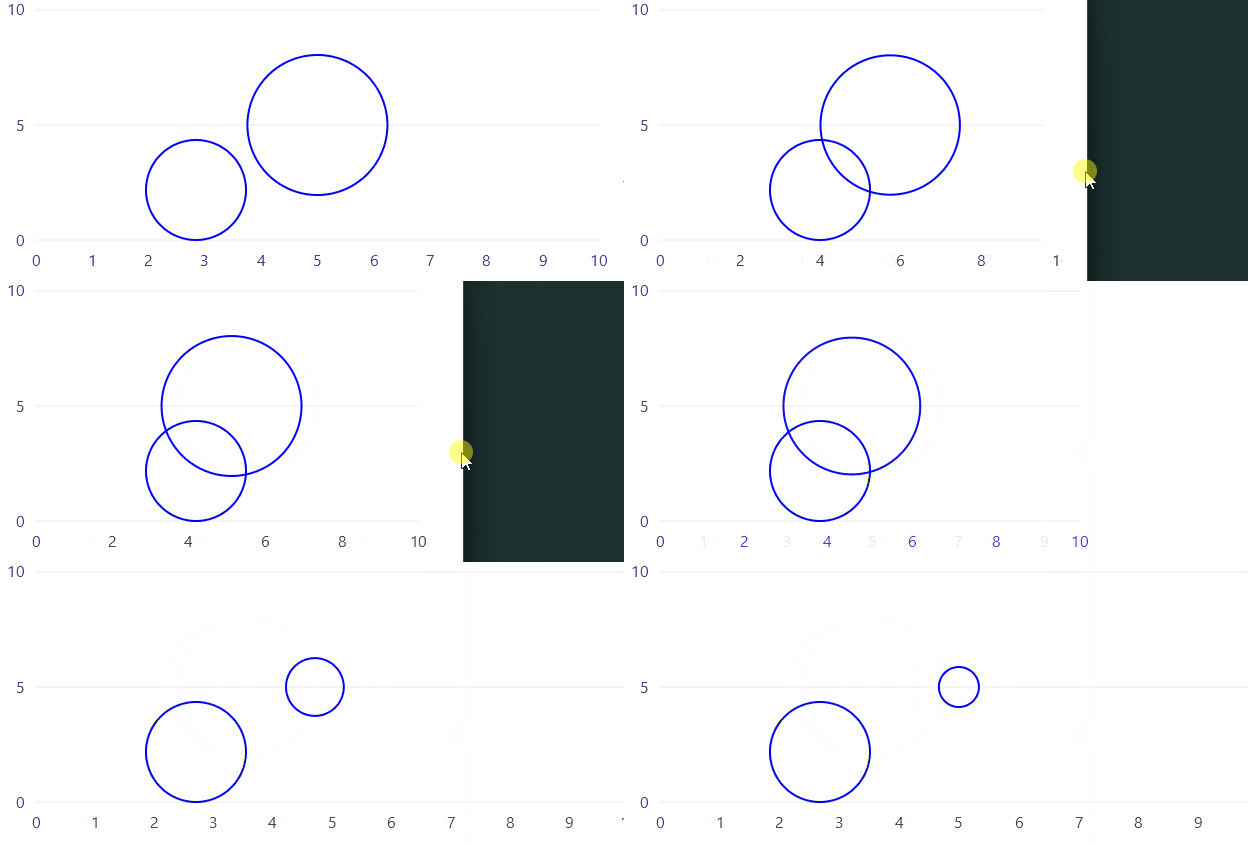
In the next example we use the UpdateStarted command/event in the CartesianChart, this command/event is raised every time
the control is measured, a LiveCharts control is measured when the data or the control size change.
Code behind
using System;
using Eto.Forms;
using LiveChartsCore;
using LiveChartsCore.Drawing;
using LiveChartsCore.Generators;
using LiveChartsCore.Kernel;
using LiveChartsCore.Kernel.Sketches;
using LiveChartsCore.SkiaSharpView;
using LiveChartsCore.SkiaSharpView.Drawing;
using LiveChartsCore.SkiaSharpView.Eto;
using LiveChartsCore.SkiaSharpView.Painting;
using SkiaSharp;
using ViewModelsSamples.General.DrawOnCanvas;

namespace EtoFormsSample.General.DrawOnCanvas;

public class View : Panel
{
    private readonly CartesianChart cartesianChart;
    private readonly MotionGeometry _geometry;
    private bool _isBig;

    public View()
    {
        cartesianChart = new CartesianChart();

        _geometry = new MotionGeometry
        {
            Diameter = 20,
            Fill = new SolidColorPaint(SKColors.Blue.WithAlpha(100)),
            Stroke = new SolidColorPaint(SKColors.Blue, strokeWidth: 3)
        };

        cartesianChart.UpdateStarted += chart =>
        {
            var locationInChartValues = new LvcPointD(5, 5);
            var locationInPixels = cartesianChart.ScaleDataToPixels(locationInChartValues);
            _geometry.X = (float)locationInPixels.X;
            _geometry.Y = (float)locationInPixels.Y;
            _geometry.Initialize(new(chart));
        };

        cartesianChart.MouseDown += (s, e) =>
        {
            _geometry.Diameter = _isBig ? 20 : 70;
            _isBig = !_isBig;
            cartesianChart.Invalidate();
        };

        Content = cartesianChart;
    }
}
In the previous case we inherited from Geometry, this class already contains some useful properties that we
can use to set the location, rotation, opacity or transform of the geometry, you can find more information about
the Geometry class here.
We override the OnDraw method to define the drawing logic of our custom geometry, in this case we are only drawing a circle
based on the X, Y and Diameter properties.
These properties are not regular properties, they are a special type defined by LiveCharts, the
MotionProperty
We also created an instance of the SolidColorPaint class, this class defines how the geometry will be rendered on the canvas,
in this case a blue color with a stroke width of 2, then we added our geometry to the paint (you can add multiple geometries),
and we also added the paint to the canvas.
The user interface update cycle is the following:
The chart control is invalidated (data changed or size changed), so the control is measured and with it the
UpdateStartedcommand/event is raised.When the control is measured, we add Paints to the canvas, and geometries to the paints, this is only scheduling the drawing, nothing is rendered yet at this point.
Now the control starts drawing all the paints and geometries in the canvas, this is when the
OnDrawmethod is called.LiveCharts defines the
MotionCanvasclass, it redraws the user interface as all the animations complete. This means that the previous step is repeated multiple times per second (~60), so you must be careful when overriding theOnDrawmethod, you should only perform drawing operations there. LiveCharts will keep drawing until all animations are finished.
