Installation and first chart
At this point you must enable the include prerelease checkbox to find LiveCharts NuGet packages
Install from NuGet
You can get LiveCharts from NuGet. If you need more help to install a package from NuGet, please follow this guide.
First chart
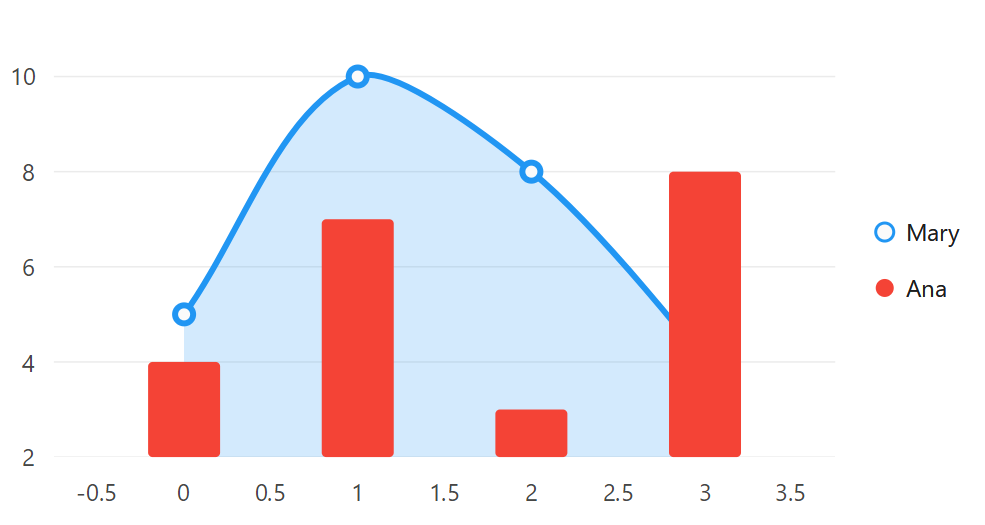
The following example renders a basic chart in the UI.
<UserControl
    x:Class="WinUISample.General.FirstChart.View"
    xmlns="http://schemas.microsoft.com/winfx/2006/xaml/presentation"
    xmlns:x="http://schemas.microsoft.com/winfx/2006/xaml"
    xmlns:lvc="using:LiveChartsCore.SkiaSharpView.WinUI">

    <lvc:CartesianChart
        LegendPosition="Right">

        <lvc:CartesianChart.Series>
            <lvc:SeriesCollection>
                <lvc:XamlLineSeries
                    SeriesName="Mary"
                    Values="{lvc:Values FromString='5, 10, 8, 4'}"/>
                <lvc:XamlColumnSeries
                    SeriesName="Ana"
                    Values="{lvc:Values FromString='4, 7, 3, 8'}"/>
            </lvc:SeriesCollection>
        </lvc:CartesianChart.Series>
    </lvc:CartesianChart>

</UserControl>
If the chart is not showing, it is most likely that the layout where you placed the chart is hiding the control. LiveCharts controls do not have any size constraints, a quick fix is to explicitly set the size of the control (Width and Height), these related issues might help you #1483, #1581.
XAML and hot-reload
LiveCharts provides XAML-friendly counterparts to its core charting types. For example, the LineSeries
These Xaml types are part of the UI framework — they live in the visual tree and behave like any other UI element. Because they're part of the visual layer, they support data bindings, styles, and other XAML features you'd expect when building user interfaces.
This means you can use hot-reload and designer previews to build charts interactively:
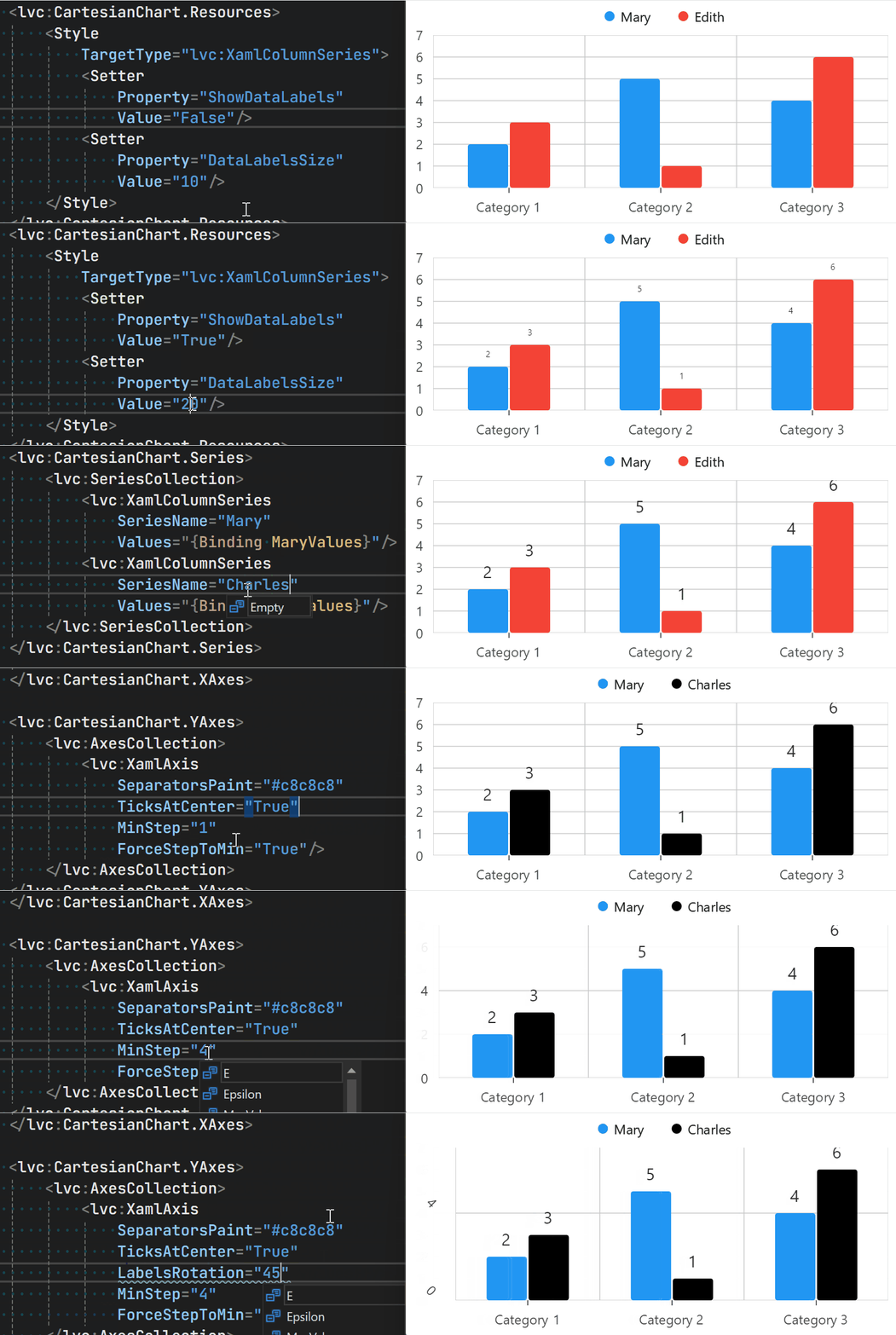
XAML designer support is limited due SkiaSharp restriction to run in the designer, but hot-reload is fully supported.
This design allows developers to cleanly separate UI from business logic. In the following two examples, both approaches produce the same chart, but the first is cleaner: the ViewModel doesn’t depend on LiveCharts or SkiaSharp — it just exposes plain data.
Example 1
<lvc:CartesianChart Grid.Row="2" SeriesSource="{Binding Data}">
    <lvc:CartesianChart.SeriesTemplate>
        <DataTemplate>
            <lvc:XamlColumnSeries
                SeriesName="{Binding Name}"
                Values="{Binding Values}"
                Fill="{Binding Color, Converter={StringToColorExampleConverter}}"/>
        </DataTemplate>
    </lvc:CartesianChart.SeriesTemplate>
</lvc:CartesianChart>
public partial class ViewModel
{
    public ChartData[] Data { get; set; } = [
        new("Juana",     [ 2, 5, 4 ], "#f00"),
        new("La cubana", [ 5, 4, 1 ], "#00f")
    ];
}

public class ChartData(string name, int[] points, string color)
{
    public string Name { get; set; } = name;
    public int[] Values { get; set; } = points;
    public string Color { get; set; } = color;
}
Example 2
<lvc:CartesianChart Series={Binding Series}"/>
using SkiaSharp;
using LiveChartsCore.Defaults;
using LiveChartsCore.SkiaSharpView;
using LiveChartsCore.SkiaSharpView.Painting;

public partial class ViewModel
{
    public ISeries[] SeriesCollection { get; set; } = [
        new ColumnSeries<ObservableValue>
        {
            Name = "Juana",
            Values =[ new(2), new(5), new(4) ],
            Fill = new SolidColorPaint(new SKColor(255, 0, 0))
        },
        new ColumnSeries<ObservableValue>
        {
            Name = "la cubana",
            Values =[ new(5), new(4), new(1) ],
            Fill = new SolidColorPaint(new SKColor(0, 0, 255))
        }
    ];
}
Configure themes, fonts, RTL or mappers (Optional)
Optionally you can configure LiveCharts to add a theme, register a global font,
add a mapper for a type or enable right to left tooltips and legends, lets create a new class and
name it CustomLiveChartsExtensions, in this class define the AddLiveChartsAppSettings
method extension to configure LiveCharts, all the next configuration is optional and overrides the default
pre-defined settings in the library.
using LiveChartsCore.Kernel;
using LiveChartsCore.SkiaSharpView;

namespace ViewModelsSamples;

public static partial class CustomLiveChartsExtensions
{
    public static LiveChartsSettings AddLiveChartsAppSettings(this LiveChartsSettings settings) =>
        settings
            // use skia sharp to draw
            .AddSkiaSharp()

            // register mappers for primitives and LiveCharts objects
            .AddDefaultMappers()

            // adds a theme that is light or dark depending on the OS theme;
            // OS theme awareness is not supported in WPF, WinForms and ETO.
            // themes registered here are handled by livecharts and can be used
            // across all the supported UI frameworks, but you could also
            // use XAML based themes if your platform supports them.
            .AddDefaultTheme(
                // if neccessary, override the default theme, for more info see:
                // https://github.com/beto-rodriguez/LiveCharts2/blob/dev/samples/ViewModelsSamples/LiveChartsThemeExtensions.cs

                //theme =>
                //    theme.OnInitialized(() =>
                //    {
                //        theme.AnimationsSpeed = TimeSpan.FromSeconds(1);
                //        theme.EasingFunction = EasingFunctions.BounceOut;
                //        theme.Colors = theme.IsDark
                //            ? ColorPalletes.MaterialDesign200
                //            : ColorPalletes.MaterialDesign800;
                //    })
            )

            // loads the recommended settings, this is equivalent to calling
            // .AddSkiaSharp().AddDefaultMappers().AddDefaultTheme()
            .UseDefaults()

            // register your own mappers, this is useful to use custom objects
            // in your plots, for example the next line registers a mapper for the
            // City record, this mapper will be used to convert the City to a coordinate.
            // you can learn more about mappers at:
            // https://livecharts.dev/docs/unowinui/2.0.0-rc6/Overview.Mappers
            .HasMap<City>(
                // the maper takes the City and its index in the collection,
                // and returns a coordinate, in this case we are using the
                // City.Population as Y and the index as the X.
                (city, index) => new(index, city.Population))

            // RTL (right-to-left) shaping is handled already in the library by Harfbuzz,
            // but we can enable RTL to force RTL tooltips and legends.
            // RTL settings are enabled when the system culture is RTL,
            // but you can also force the use of RTL settings by calling:
            //.UseRightToLeftSettings()
        ;

    public record City(string Name, double Population);
}
Now go to the Solution Explorer and browse for UnoApp.Shared/App.xaml.cs file, then edit it as follows:
using LiveChartsCore; // mark
using ViewModelsSamples;

namespace UnoPlatformSample;

public partial class App : Application
{
    /// <summary>
    /// Initializes the singleton application object. This is the first line of authored code
    /// executed, and as such is the logical equivalent of main() or WinMain().
    /// </summary>
    public App()
    {
        this.InitializeComponent();
    }

    protected Window? MainWindow { get; private set; }
    protected IHost? Host { get; private set; }

    protected async override void OnLaunched(LaunchActivatedEventArgs args)
    {
        // this is the recommended place to configure LiveCharts // mark
        LiveCharts.Configure(c => c // mark
             .AddLiveChartsAppSettings()); // mark

        var builder = this.CreateBuilder(args)
            // Add navigation support for toolkit controls such as TabBar and NavigationView
            .UseToolkitNavigation()
            .Configure(host => host
#if DEBUG
                // Switch to Development environment when running in DEBUG
                .UseEnvironment(Environments.Development)
#endif
                .UseLogging(configure: (context, logBuilder) =>
                {
                    // Configure log levels for different categories of logging
                    logBuilder
                        .SetMinimumLevel(
                            context.HostingEnvironment.IsDevelopment() ?
                                LogLevel.Information :
                                LogLevel.Warning)

                        // Default filters for core Uno Platform namespaces
                        .CoreLogLevel(LogLevel.Warning);

                    // Uno Platform namespace filter groups
                    // Uncomment individual methods to see more detailed logging
                    //// Generic Xaml events
                    //logBuilder.XamlLogLevel(LogLevel.Debug);
                    //// Layout specific messages
                    //logBuilder.XamlLayoutLogLevel(LogLevel.Debug);
                    //// Storage messages
                    //logBuilder.StorageLogLevel(LogLevel.Debug);
                    //// Binding related messages
                    //logBuilder.XamlBindingLogLevel(LogLevel.Debug);
                    //// Binder memory references tracking
                    //logBuilder.BinderMemoryReferenceLogLevel(LogLevel.Debug);
                    //// DevServer and HotReload related
                    //logBuilder.HotReloadCoreLogLevel(LogLevel.Information);
                    //// Debug JS interop
                    //logBuilder.WebAssemblyLogLevel(LogLevel.Debug);

                }, enableUnoLogging: true)
                .UseConfiguration(configure: configBuilder =>
                    configBuilder
                        .EmbeddedSource<App>()
                        .Section<AppConfig>()
                )
                // Enable localization (see appsettings.json for supported languages)
                .UseLocalization()
                // Register Json serializers (ISerializer and ISerializer)
                .UseSerialization((context, services) => services
                    .AddContentSerializer(context)
                    .AddJsonTypeInfo(WeatherForecastContext.Default.IImmutableListWeatherForecast))
                .UseHttp((context, services) =>
                {
#if DEBUG
                // DelegatingHandler will be automatically injected
                services.AddTransient<DelegatingHandler, DebugHttpHandler>();
#endif
                    services.AddSingleton<IWeatherCache, WeatherCache>();
                    services.AddKiotaClient<WeatherServiceClient>(
                    context,
                    options: new EndpointOptions { Url = context.Configuration["ApiClient:Url"]! }
                    );

                })
                .ConfigureServices((context, services) =>
                {
                    // TODO: Register your services
                    //services.AddSingleton<IMyService, MyService>();
                })
                .UseNavigation(ReactiveViewModelMappings.ViewModelMappings, RegisterRoutes)
            );
        MainWindow = builder.Window;

#if DEBUG
        MainWindow.UseStudio();
#endif
        MainWindow.SetWindowIcon();

        Host = await builder.NavigateAsync<Shell>();
    }

    private static void RegisterRoutes(IViewRegistry views, IRouteRegistry routes)
    {
        views.Register(
            new ViewMap(ViewModel: typeof(ShellModel)),
            new ViewMap<MainPage, MainModel>(),
            new DataViewMap<SecondPage, SecondModel, Entity>()
        );

        routes.Register(
            new RouteMap("", View: views.FindByViewModel<ShellModel>(),
                Nested:
                [
                    new ("Main", View: views.FindByViewModel<MainModel>(), IsDefault:true),
                    new ("Second", View: views.FindByViewModel<SecondModel>()),
                ]
            )
        );
    }
}
Enable hardware acceleration
LiveCharts supports hardware accelerated views via SkiaSharp, by default the library is not hardware accelerated, this is because as today the GPU views by SkiaSharp are not as stable as the CPU views.
On Avalonia or Uno with the SkiaRenderer enabled, the LiveCharts settings for GPU/CPU control or VSync are ignored, since this is handled by Avalonia/Uno, LiveCharts just draws as the UI framework wants. It is normally already using hardware acceleration, but completely handled by the UI framework.
GPU improves the time it takes to render a frame, which results in smoother and more efficient animations, but as today, there are some known issues when using the SkiaSharp hardware accelerated views (specially when disposing/re-creating the controls), you can turn on hardware acceleration, the recommendation is to update SkiaSharp to the latest available version, then test if it works correctly for your case.
If you face an issue with the hardware accelerated views, ensure to identify if the issue belongs to SkiaSharp or LiveCharts; If the issue occurs on both CPU and GPU render modes, then the issue is most likely a LiveCharts issue, if it only happens when GPU is on, then it is most likely an issue with the hardware accelerated views of SkiaSharp.
using LiveChartsCore.Kernel;
using LiveChartsCore.SkiaSharpView;
using SkiaSharp;

namespace ViewModelsSamples;

public static partial class CustomLiveChartsExtensions
{
    public static LiveChartsSettings AddLiveChartsRenderSettings(this LiveChartsSettings settings) =>
        settings
            // Configure the global rendering settings
            // this is the default configuration used by LiveCharts,
            // uncomment the lines below to override the defaults.
            // this has no effect in Avalonia or Uno with skia rendering.
            .HasRenderingSettings(settings =>
            {
                // enabling GPU may improve performance but could not be as stable as CPU rendering.
                // settings.UseGPU = false;

                // when Vsync is enabled the charts will render in sync with the screen refresh rate,
                // this improves animations quiality and lets the system handle the refresh rate.
                // settings.TryUseVSync = true;

                // if Vsync is disabled, then the charts will try to render at the specified FPS.
                // settings.LiveChartsRenderLoopFPS = 60;

                // shows the current FPS in the top-left corner of the chart,
                // settings.ShowFPS = false;
            })

            // LiveCharts uses some defaults for text rendering, but you can
            // improve the configuration to fit your app needs.
            .HasTextSettings(new TextSettings
            {
                // A typeface to use as a default when a paint does not
                // explicitly set a typeface, this could improve the
                // text quality but requires the font to be installed.
                // example: SKTypeface.FromFamilyName("Arial")
                DefaultTypeface = SKTypeface.Default,

                // This function is called every time text is drawn,
                // it allows you to configure the paint and font before
                // drawing, you could improve the text quality by changing
                // Edging, Hinting, etc.
                FontBuilder = (paint, typeface, size) =>
                {
                    // This is the default used by LiveCharts:
                    // you can improve this function to suit your needs.

                    paint.TextSize = size;
                    paint.Typeface = typeface;
                    paint.IsAntialias = true;
                    paint.LcdRenderText = true;

                    return new SKFont(typeface, size)
                    {
                        Edging = SKFontEdging.SubpixelAntialias,
                        Hinting = SKFontHinting.Normal
                    };
                }
            })

            // advanced settings, register your own rendering factory, for example:
            // https://github.com/beto-rodriguez/LiveCharts2/blob/master/src/skiasharp/LiveChartsCore.SkiaSharpView.Maui/MotionCanvas.cs#L43
            // in that link we use the CPU or GPU render mode depending on the user settings, the GPU uses
            // the SkiaSharp hardware accelerated views.
            //.HasRenderingFactory(
            //    (settings, forceGPU) =>
            //    {
            //        // return your renderer here.
            //    })
        ;
}
Finally chain the render settings we just created at our LiveCharts configuration section:
LiveCharts.Configure(c => c
    .AddLiveChartsAppSettings()
    .AddLiveChartsRenderSettings());
Advanced rendering
SkiaSharp makes it easy to take the library to Android, iOS, Windows, MacOS, Tizen, Linux and the Web, but on advanced scenarios you can build your own backend, for example in the next example we use DirectX11 via Vortice.Windows to render our chart. This gives us full control over the rendering pipeline, this has some benefits such as:
- Improved performance.
- Potentially smaller
exefiles since we no longer need the Skia natives. - Potentially better AOT builds.
You can find the Vortice sample at the GitHub repo, it does not support all the features in the library, this example is just to demonstrate that LiveCharts dependency on SkiaSharp is optional; We can connect the library to any drawing engine.
