Angular Gauge
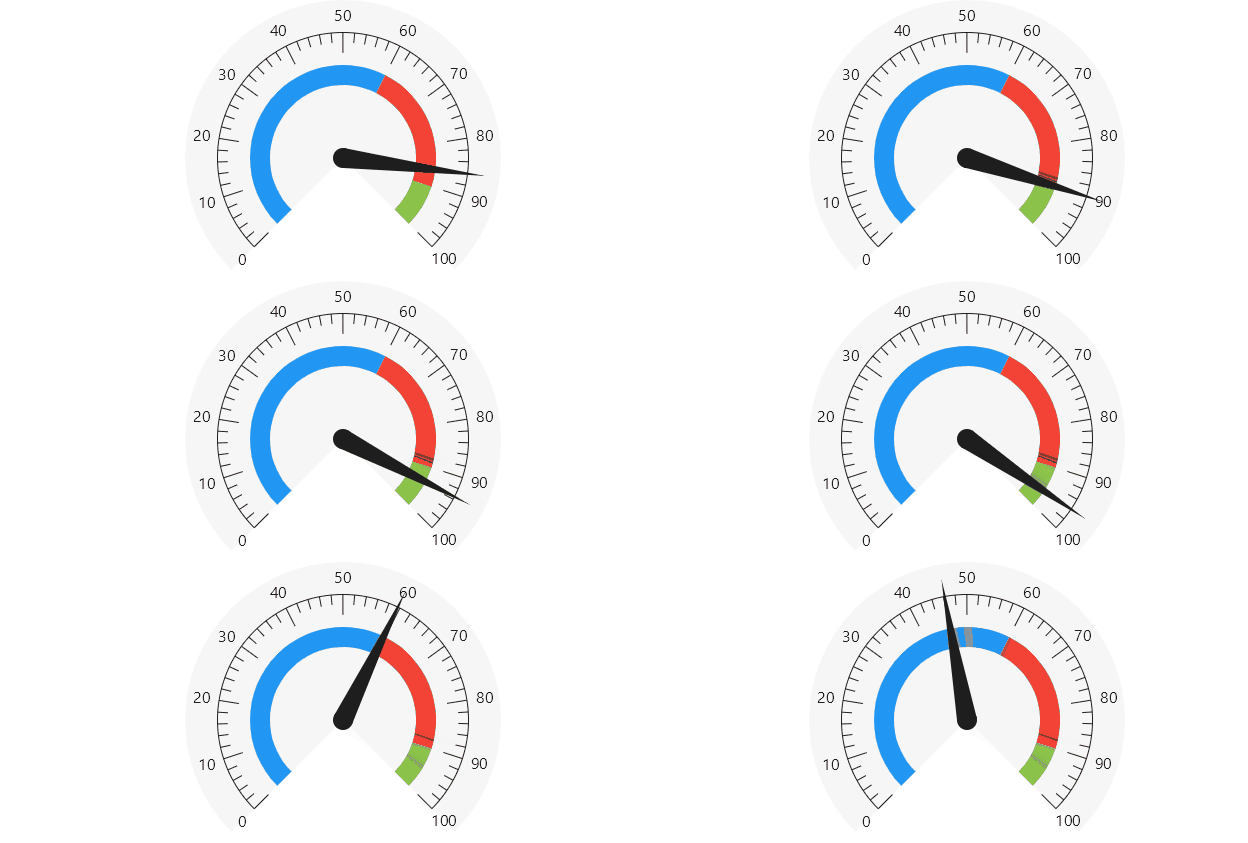
Code behind
using System;
using Eto.Forms;
using LiveChartsCore.Defaults;
using LiveChartsCore.SkiaSharpView;
using LiveChartsCore.SkiaSharpView.Extensions;
using LiveChartsCore.SkiaSharpView.VisualElements;
using LiveChartsCore.SkiaSharpView.Eto;

namespace EtoFormsSample.Pies.AngularGauge;

public class View : Panel
{
    private readonly PieChart pieChart;
    private readonly NeedleVisual needle;
    private readonly Random _random = new();

    public View()
    {
        var sectionsOuter = 130;
        var sectionsWidth = 20;

        needle = new NeedleVisual
        {
            Value = 45
        };

        pieChart = new PieChart
        {
            Series = GaugeGenerator.BuildAngularGaugeSections(
                new GaugeItem(60, s => SetStyle(sectionsOuter, sectionsWidth, s)),
                new GaugeItem(30, s => SetStyle(sectionsOuter, sectionsWidth, s)),
                new GaugeItem(10, s => SetStyle(sectionsOuter, sectionsWidth, s))),
            VisualElements = [
                new AngularTicksVisual
                {
                    Labeler = value => value.ToString("N1"),
                    LabelsSize = 16,
                    LabelsOuterOffset = 15,
                    OuterOffset = 65,
                    TicksLength = 20
                },
                needle
            ],
            InitialRotation = -225,
            MaxAngle = 270,
            MinValue = 0,
            MaxValue = 100
        };

        var b1 = new Button { Text = "Update" };
        b1.Click += (sender, e) => needle.Value = _random.Next(0, 100);

        Content = new DynamicLayout(new StackLayout(b1), pieChart);
    }

    private static void SetStyle(
        double sectionsOuter, double sectionsWidth, PieSeries<ObservableValue> series)
    {
        series.OuterRadiusOffset = sectionsOuter;
        series.MaxRadialColumnWidth = sectionsWidth;
        series.CornerRadius = 0;
    }
}
Custom needle
You can inherit from NeedleGeometry to change the aspect of the needle, for example in the next code snippet,
the SmallNeedle class inherits from NeedleGeometry, then in the constructor it sets the ScaleTransform
property to 0.6 in the X and Y axis, this will make the needle 40% smaller.
using LiveChartsCore.SkiaSharpView.Drawing.Geometries;

namespace ViewModelsSamples.Pies.AngularGauge;

public class SmallNeedle : NeedleGeometry
{
    public SmallNeedle()
    {
        ScaleTransform = new(0.6f, 0.6f);
    }
}
Finally we need to use this new needle in our gauge, in the example above change the type NeedleVisual
to NeedleVisual<SmallNeedle>.
public partial class ViewModel
{
    // ...

    public NeedleVisual<SmallNeedle> Needle { get; set; }

    public ViewModel()
    {
        Needle = new NeedleVisual<SmallNeedle>
        {
            Value = 45
        };

        // ...
    }

    // ...
}
Run the app again, now the needle is 40% smaller.
You can also override the Draw() method and use SkiaSharp to create your own needle, in the next snippet,
we are drawing a rectangle using SkiaSharp to represent the needle:
using LiveChartsCore.SkiaSharpView.Drawing;
using LiveChartsCore.SkiaSharpView.Drawing.Geometries;

namespace ViewModelsSamples.Pies.AngularGauge;

public class CustomNeedle : NeedleGeometry
{
    public override void Draw(SkiaSharpDrawingContext context)
    {
        var paint = context.ActiveSkiaPaint;

        context.Canvas.DrawRect(X - Width * 0.5f, Y, Width, Radius, paint);
    }
}
Finally we need to use this new needle in our gauge:"
public partial class ViewModel
{
    // ...

    public NeedleVisual<CustomNeedle> Needle { get; set; }

    public ViewModel()
    {
        Needle = new NeedleVisual<CustomNeedle>
        {
            Value = 45
        };

        // ...
    }

    // ...
}
Run the app again, now there is a rectangle as our needle:
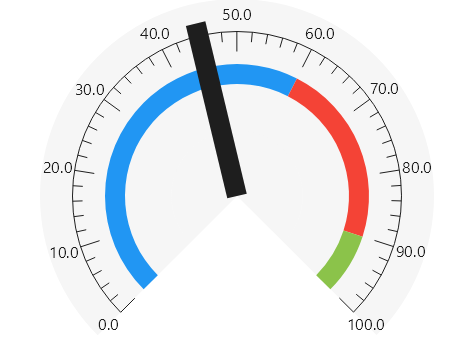
You can draw anything with SkiaSharp, this article does not explain how to do it. If you need help, you can see the default NeedleGeometry source code, or you can follow any SkiaSharp guide.
